
MitKar – Complete Guide to CapCut AI Tools: Background Remover, Upscaler & More
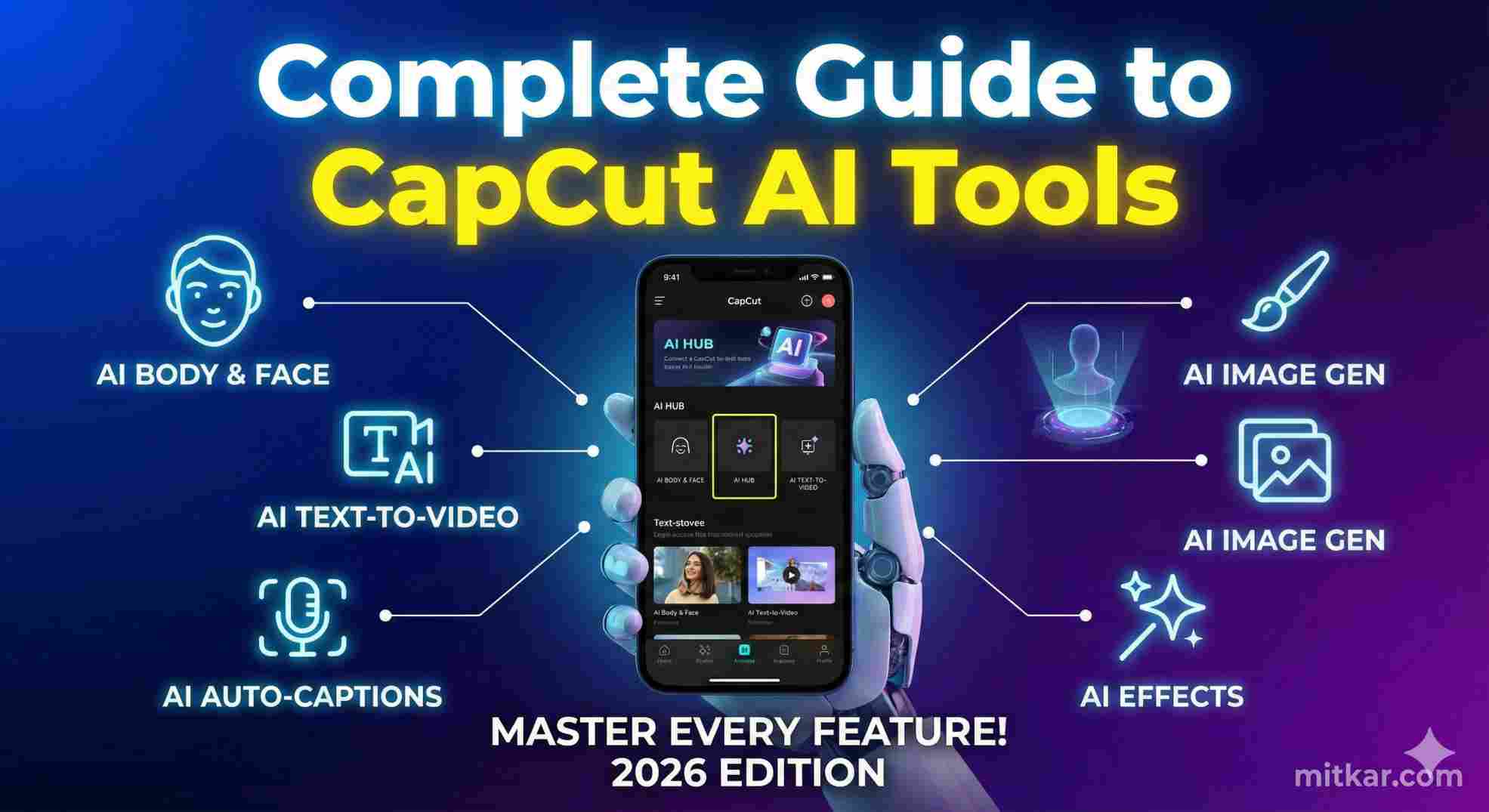
Table of Contents
Traditional video editing processes are rapidly becoming legally obsolete. In 2026, forcing a video editor to manually mask frames or sit through hours of manual color correction is no longer viable. The digital engine inside CapCut Pro has entirely pivoted towards heavy neural-network integration. By strictly mastering specific CapCut AI Tools, you can drastically reduce your workflow and completely bypass the need for expensive third-party rendering software like Adobe Premiere Pro.
At MitKar.com, we specialize in reverse-engineering mobile and desktop editing parameters. This comprehensive guide details exactly how to utilize the most mathematically complex AI tools inside the CapCut infrastructure: the AI Background Remover, the highly-touted Video Upscaler, and the advanced Auto-Caption generator.
PRO TIP: If your CapCut application freezes during heavy AI computational rendering (like upscaling), immediately read our verified protocol on how to Boost CapCut 4K Export Speed Instantly.
1. The CapCut AI Background Remover (Auto Cutout)
The days of frantically adjusting green screens and pulling perfectly clean chroma keys are essentially dead. CapCut AI Tools employ a dedicated machine-learning algorithm called the 'Auto Cutout' feature that natively isolates human forms from incredibly complex, cluttered backgrounds.
- Step 1: Import your central video clip into the primary timeline track.
- Step 2: With the clip selected, navigate to the
Cutoutmenu panel and algorithmically bypass 'Chroma Key' directly in favor ofAuto Cutout. - Step 3: Wait for the localized rendering bar to calculate the vector masks (usually generating 100% accuracy within 5-10 seconds depending on device hardware capacity).
This technique allows professional editors to place fully dynamic, moving CapCut Transitions, glowing neon text logs, and completely different 3D environments *behind* their subjects effortlessly.
2. The CapCut AI Video Upscaler (Enhancing Bitrate)
Mobile devices frequently shoot in 1080p, generating localized compression artifacts due to poor lighting bandwidth. The CapCut Upscaler fixes this directly. It doesn't merely stretch the image dimensions; it uses an aggressive neural interpolator to guess and natively generate missing pixels, effectively turning a noisy 1080p clip into a shockingly clean 4K export sequence.
To properly engage this, select your degraded clip, locate the Image Quality parameter, and activate Reduce Noise heavily coupled with the HD toggle. It mathematically sharpens blurred edges (like hair follicles and brick textures) and actively suppresses high-ISO camera digital grain. Always Note: This requires a fast CPU processor, which is why older Android devices may lag during the render process. If you face HDR rendering conflicts, make sure to bypass them via our 10-Bit HDR Lag Resolution Code.
3. Smart Auto-Captions & Translation AI
Every single viral Instagram Reel inherently utilizes on-screen typography. It mathematically increases Watch Time by over 60%. Instead of manually scrubbing frame-by-frame to type out dialogue, the CapCut AI Tools natively execute voice-recognition algorithms in real-time.
Simply navigate to Text > Auto Captions. The engine connects securely to ByteDance's server grid, immediately transforming spoken dialect into flawless time-stamped text layers. From there, you immediately apply 'Pro' text animationsâ€â€specifically highlighting individual words exactly as they are spoken, which creates the massive "Alex Hormozi" aesthetic currently dominating the marketplace.
4. Pros & Cons: Over-Relying on AI Generation
Frequently Asked Questions (FAQ)
Final Strategic Conclusion
The absolute key to dominating the modern algorithm hierarchy on TikTok and Instagram Reels lies completely in your ability to harness hyper-advanced CapCut AI Tools. By actively removing backgrounds instantly, dynamically upscaling bitrate clarity to 4K resolutions, and strictly ensuring auto-caption compliance, you inherently execute hours of editing labor within mere minutes.
Do not settle for generic rendering outputs. Utilize the precise editing methodology detailed in this guide at MitKar.com, implement a strict high-bitrate rendering protocol, and establish yourself as an absolutely elite timeline manipulator.